1. How do I fix bullets & numbering in Word?
The pain: Indents jump; numbering restarts (or refuses to); outline levels don’t match headings.
The fix (fast):
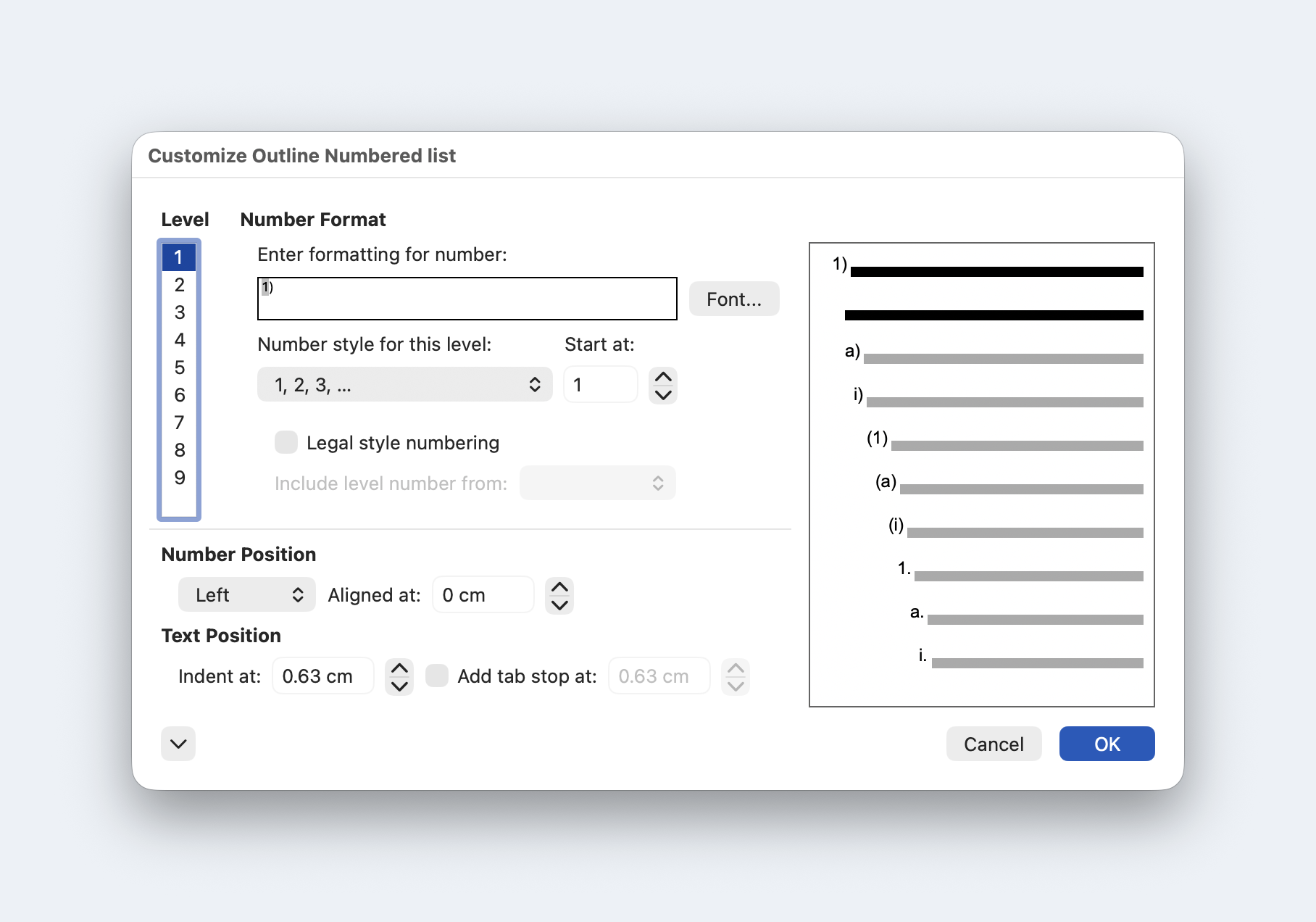
- Use one multilevel list linked to Heading 1–9 (Home → Multilevel List ▼ → Define New Multilevel List → More → link each level to a Heading style). This prevents “freehand” lists from diverging.
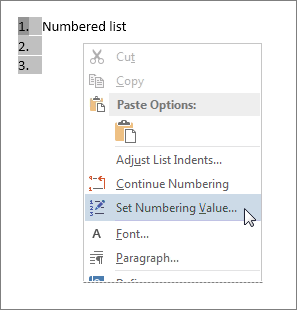
- If a list breaks: right-click a number → Restart at 1 or Set Numbering Value / Continue Numbering.
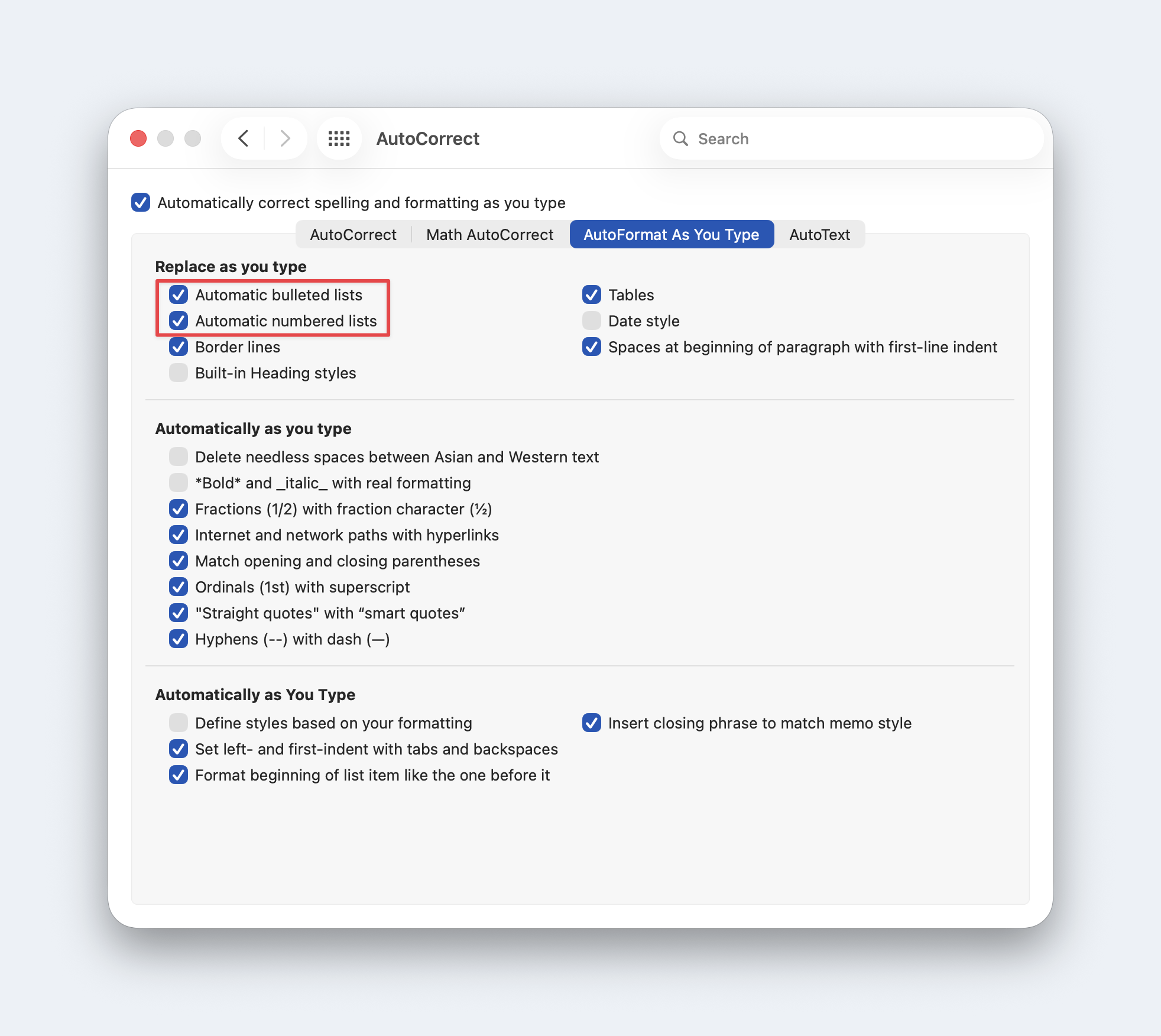
- Stop surprise lists: File → Options → Proofing → AutoCorrect Options → AutoFormat As You Type → uncheck automatic lists.
Enterprise tip: Bake list levels into your corporate template and discourage on-the-fly numbering.
Try it with AI:
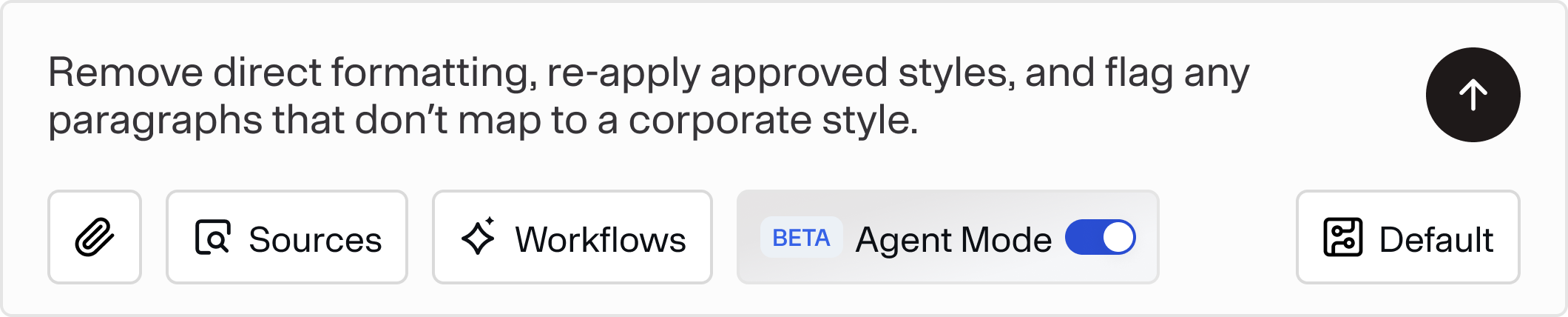
Doco can sweep, relink levels, and standardize indents across the whole doc.
2. Why won’t my Table of Contents / cross-references / captions update?
The pain: TOC is stale; figure/table numbers are off; “See Section 3.2” links point nowhere.
The fix (fast):
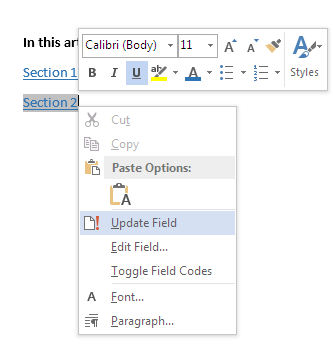
- Update everything at once: Ctrl+A → F9 (fields). Consider auto-update before print (File → Options → Display → “Update fields before printing”).
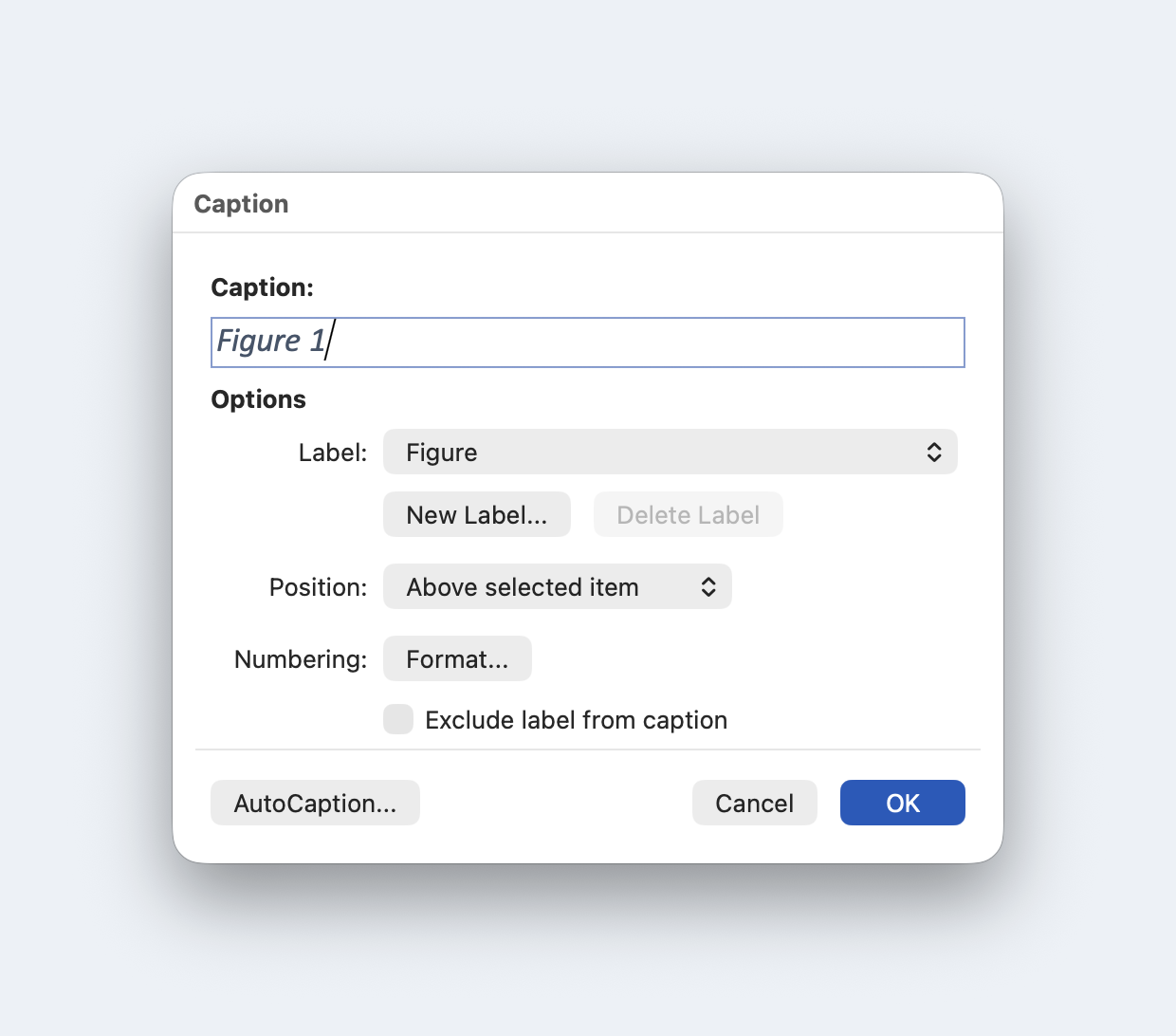
- Use References → Insert Caption for figures/tables so numbering stays consistent.

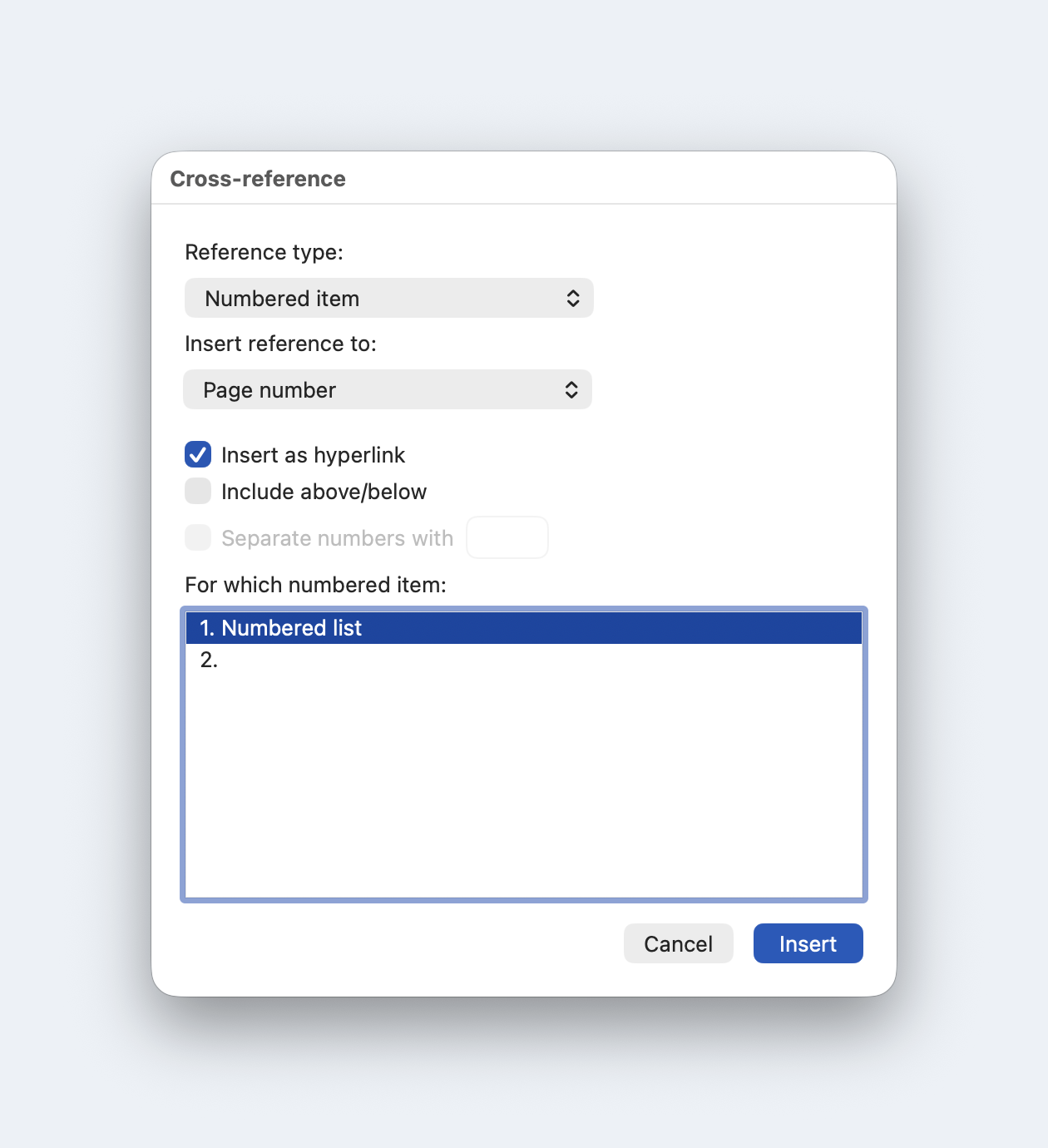
- Create Insert → Cross-reference links to headings, captions, etc., so section renumbering follows. (Microsoft Support)
Enterprise tip: Standardize labels (“Figure”, “Table”, “Exhibit”) and case. Mixing labels is a silent source of errors.
3. Track Changes overload & merge chaos—how do I get back to clean?
The pain: Balloons everywhere; co-authoring conflicts; locked files.
The fix (fast):
- Triage after each review cycle: Review → Accept ▼ → Accept All Changes (or Reject All). Don’t carry yesterday’s markup forward.
- Make co-authoring work: store in OneDrive/SharePoint; use .docx; avoid “Marked as Final” and unnecessary check-out; IRM-encrypted files need specific admin enables. (read more )
Enterprise tip: Document a cadence (green team = accept, red team = reopen) and minimize “require check-out” libraries.
4. Styles look right but aren’t right—how do I stop style drift?
The pain: Text looks like Heading 2 but is Normal + manual formatting; brand styles go off-spec.
The fix (fast):
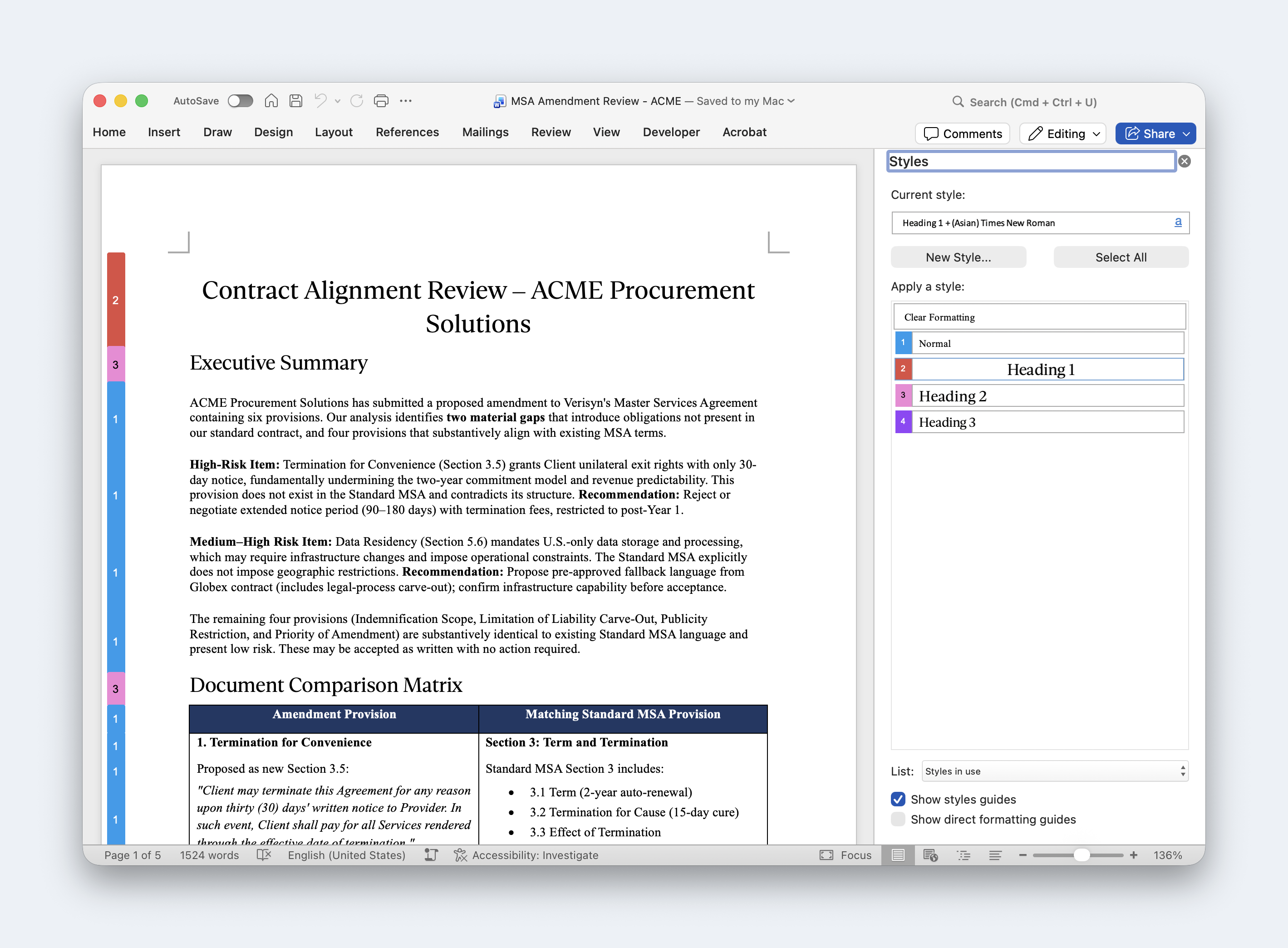
- Reveal and clean: open Styles pane → Style Inspector to spot/remove direct formatting; re-apply the correct style.
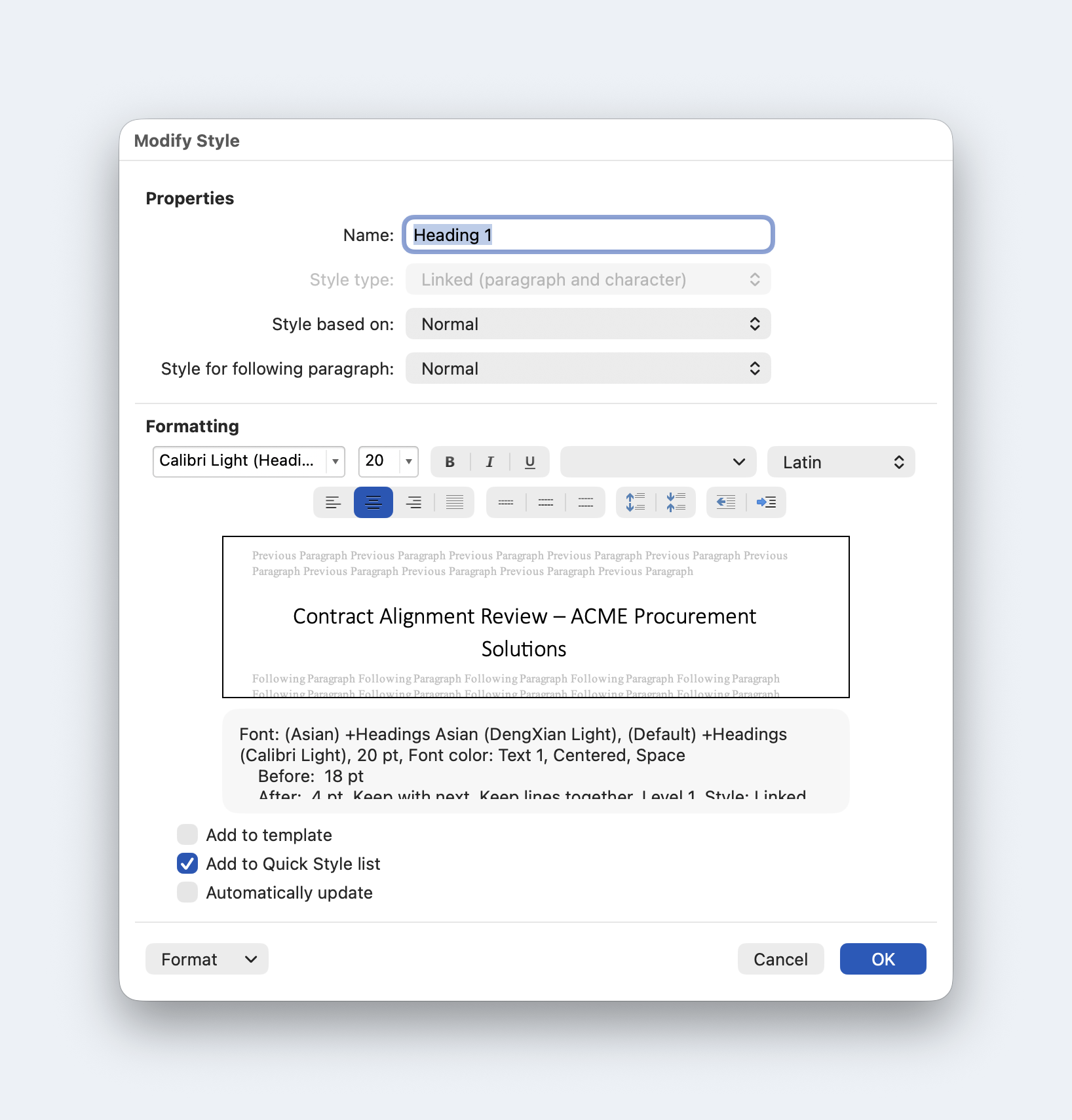
- Modify styles (don’t format locally): Home → Styles → right-click style → Modify.
- Govern styles when needed: Review → Restrict Editing → Limit formatting to a selection of styles. (read more)
Try it with Doco:
Doco cleans local overrides and enforces your style map.
5. Images and tables jump around—how do I keep layout stable?
The pain: Pictures move when text moves; tables split awkwardly across pages.
The fix (fast):
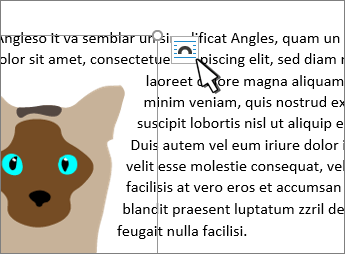
- Pictures: pick a wrap mode; if floating, Lock anchor (Layout Options → See more → Lock anchor). “In Line with Text” is safest; floating wraps need anchors.
- Headings + first paragraph: set Keep with next (Paragraph → Line & Page Breaks). (read more)
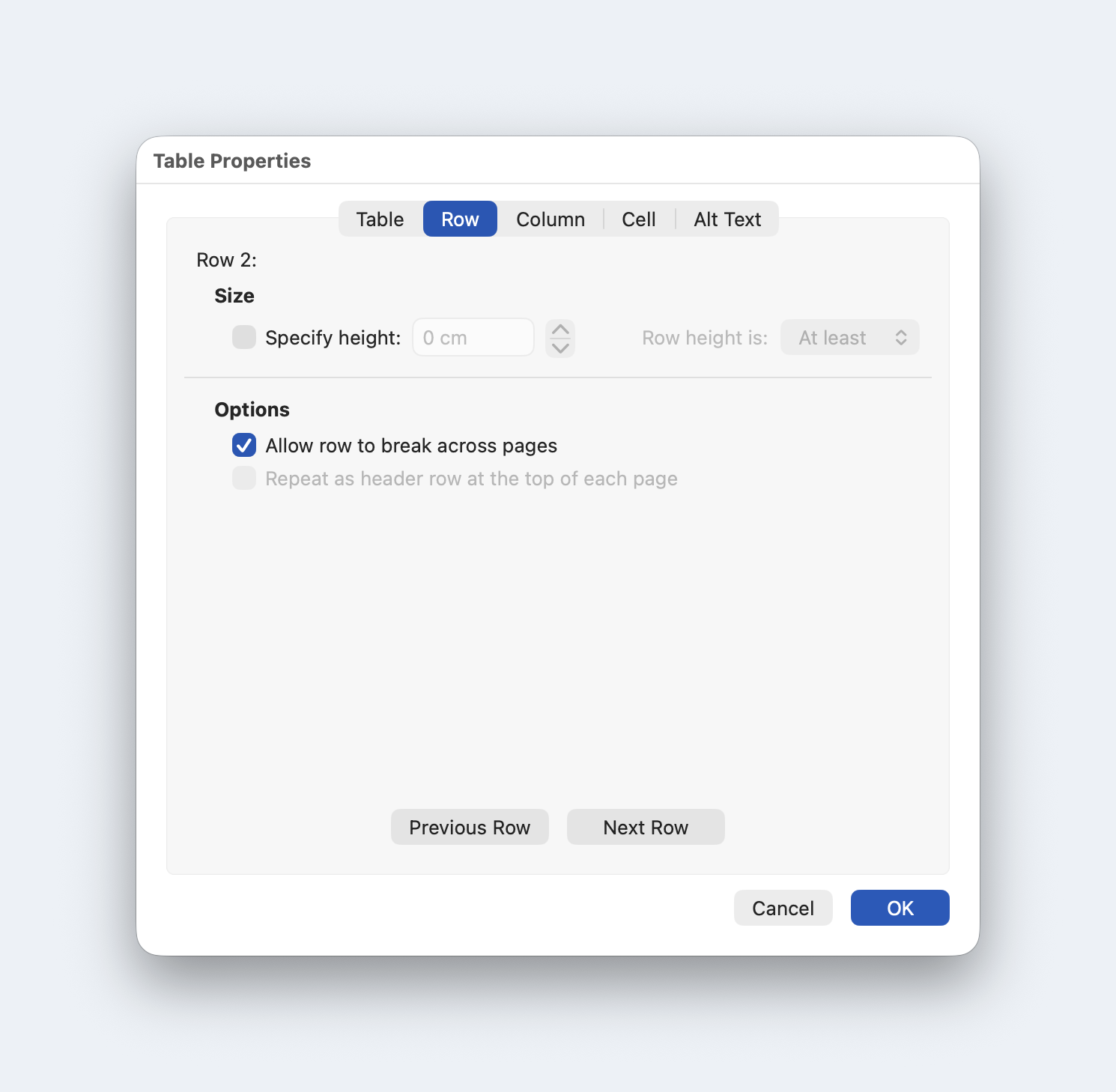
- Tables: Table Properties → Row → uncheck Allow row to break across pages; optionally apply Keep with next to keep tables intact.
Enterprise tip: Put image/table defaults in templates so authors don’t improvise mid-draft.
6. Word for the web is missing features—what can I (and can’t I) do online?
The pain: Browser editing can’t handle advanced structure (styles management, complex cross-refs), so teams get blocked.
The fix (fast):
- Know the limits and the handoff: Word for the web supports basic edits; advanced layout/structure tasks are best done in desktop Word. Use Open in Desktop App for styles, cross-refs, TOC, and final pagination.
- Team pattern: draft/light edits online → structure/format in desktop → save back to SharePoint/OneDrive.
Enterprise tip: Publish a one-pager of “desktop-only” tasks so reviewers don’t thrash the file in the web app.
7. How do I remove hidden metadata—or rescue a “possessed” file?
The pain: Docs leak author names, comments, revisions; or a file behaves strangely/appears corrupted.
The fix (fast):
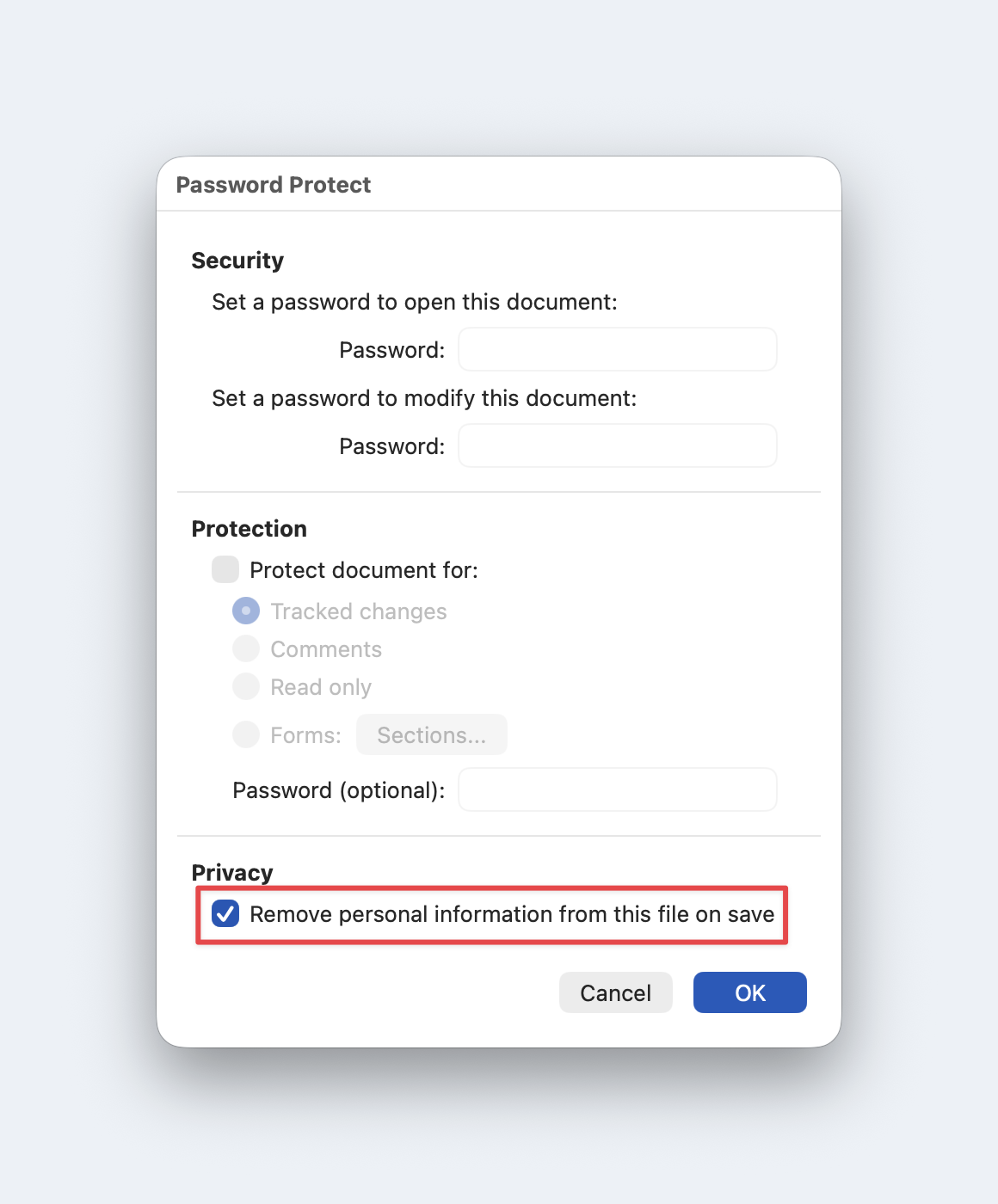
- Before sending externally, run Document Inspector (File → Info → Check for Issues → Inspect Document), then Remove All as needed. On Mac, use Protect Document to remove personal info.
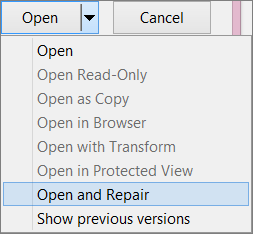
- If a file misbehaves, try Open and Repair (File → Open → arrow on Open → Open and Repair). If persistent, repair Office or rebuild Normal.dotm (Word regenerates a fresh one).
Fix it with AI
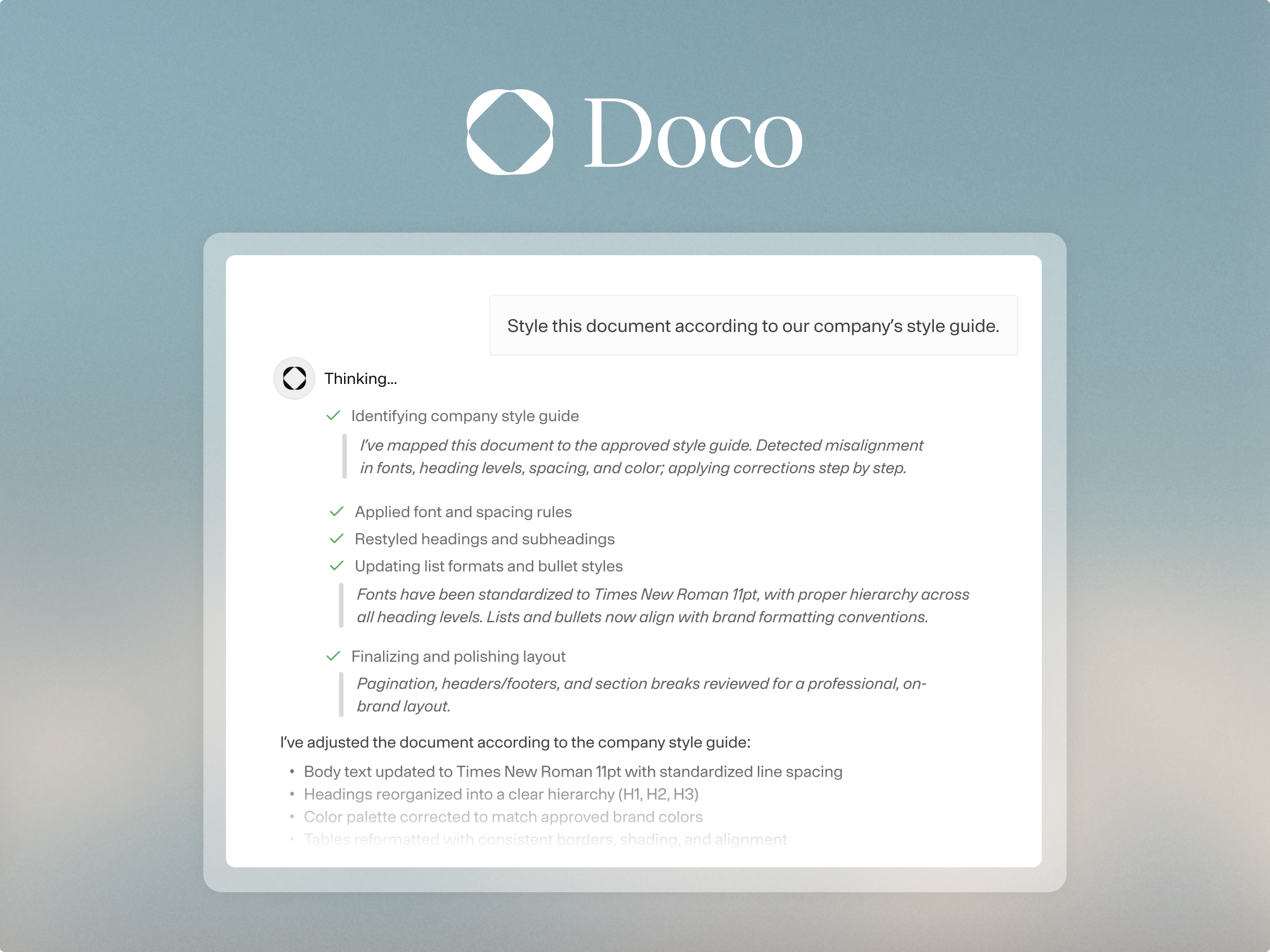
Fix it once, not seven times. Try Doco inside Word to normalize lists, clean styles, stabilize layout, and run a pre-send inspection—without leaving your document.